
Help
How to…
Quick start
Grab a IRC client and connect to irc.velatus.net, port 6697. Some IRC clients, like mIRC (Windows), require a plus sign (+) before the port (+6697), to use IRCS (TLS/SSL) capabilities. Refer to specific client’s documentation, to add networks/servers, configure nicknames etc.
IRC commands are universal, however some IRC clients may add their own, that are specific to the client and are affecting only the software. Commands always start with “/” prefix (/command). We strongly recommend entering all the sensitive commands, that contain passwords or other private information in the status window of the IRC client. Avoid such commands on channels and even in private message windows. One of such important commands are /ns identify <password> (after you have registered your nickname), which identifies you to the Network Service NickServ. You can either use alias /ns or /msg NickServ identify <password> or to make sure, that you are messaging the official Network Service, not some Network Services impersonator, that is trying to steal users passwords – /msg NickServ@services.velatus.net identify <password>.
Connection to the server is usually made by entering /server <server address> <port>
So to connect to Velatus server you would enter /server irc.velatus.net 6697
On most popular Windows client mIRC, you enter /server irc.velatus.net +6697
Once you’re connected, you can use /join #channelname to join a channel. To get a list of available channels, use /list, but you can make your own, if it does not exist.
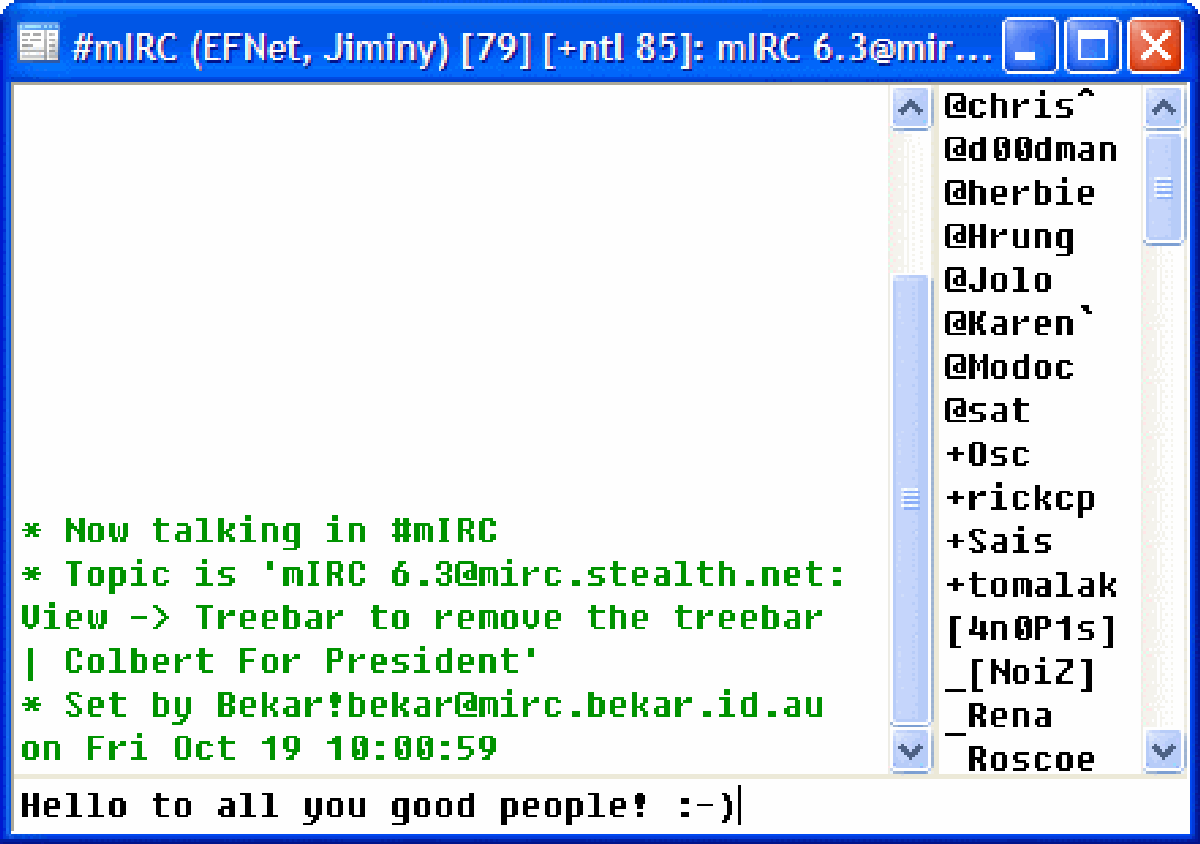
On channel, you will see a list of users. Some of those users will have special characters, like “@”, “%” or “+” in front of their nicknames. Those are channel operators, channel half-operators and voiced users. Channel operators can change channel topics, chage channel modes and kick and ban other users on channel. Voiced users (voices) are trusted users, who have a say about channel doings, but they cannot kick or ban anyone. They are also able to speak in channel, when mode +m/+M (moderated) is set on a channel or they are banned, while still on channel.
You do not have to join a channel though. You can just use /msg (alias for /privmsg) to send a private message to someone, who is also connected to Velatus.
To change your nickname, type /nick <newnick>. If you are a channel operator, you can use /kick <nickname> and channel mode commands, like /mode +b <hostmask> to ban, multiple modes used in ome command, like /mode #channelname +nt (no external messages from outside the channel without joining it and only operators may change the channel topic).
In addition to channel modes, there are also user modes. For an example, you can set a mode +i on yourself (/mode <your nickname> +i) to stay invisible on server. It means, if users do not know your exact nickname, they will not see that you are connected to the server, while using /who and /names commands outside the channel. However, they will obviously see you, if they are on same channel as you. This mode is on automatically, upon connecting to server.
You can unset all modes by entering /mode <#channel> -<mode> or /mode <your nickname> -<mode>
One of the most important user modes on Velatus is +x, which masks your real hostname/IP. Every Velatus user has this mode also turned on automatically, upon connecting to server. However, if you feel confident, adventurous or just want to show off your fancy host, you can unset the usermode x by /mode <your nickname> -x
To just display currently active user or channel modes, use /mode <nickname> or /mode <#channelname> .
List of IRC commands is available below.
IRC clients
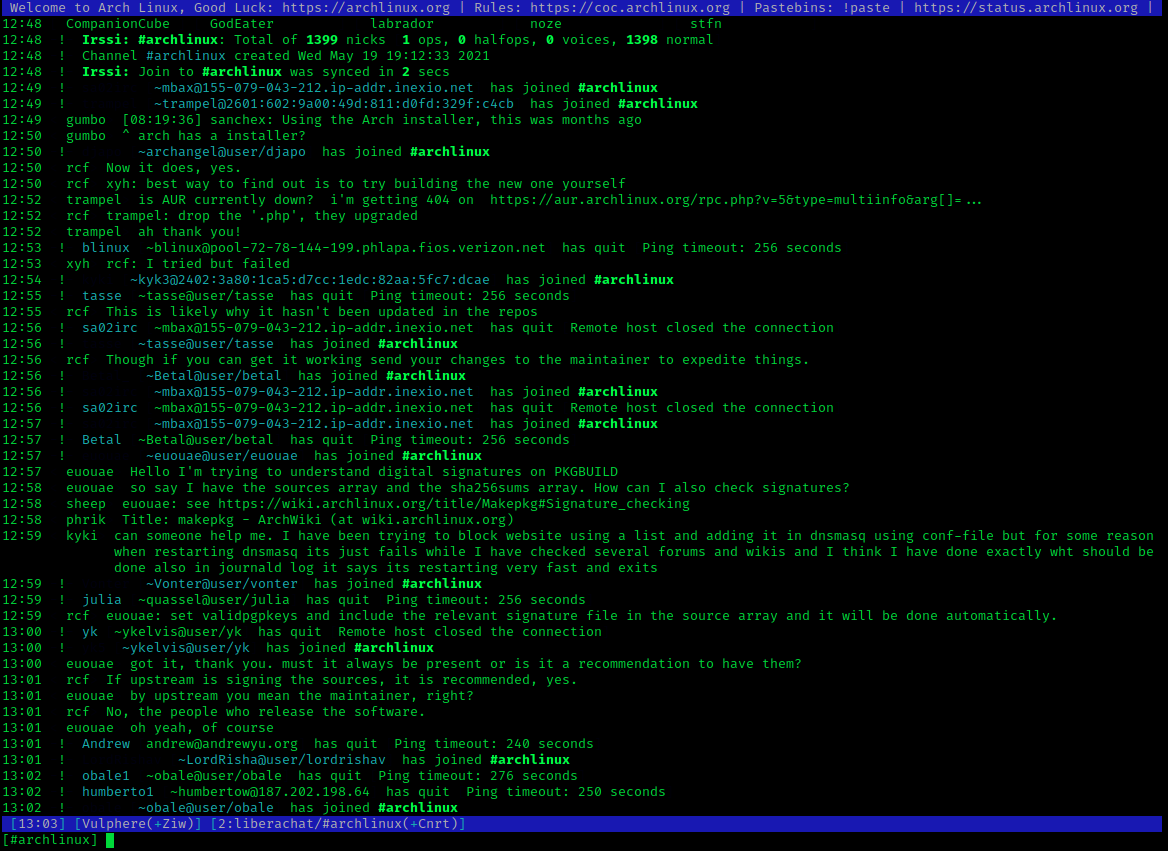
irssi (Text based, macOS, *nix, Windows (Cygwin))
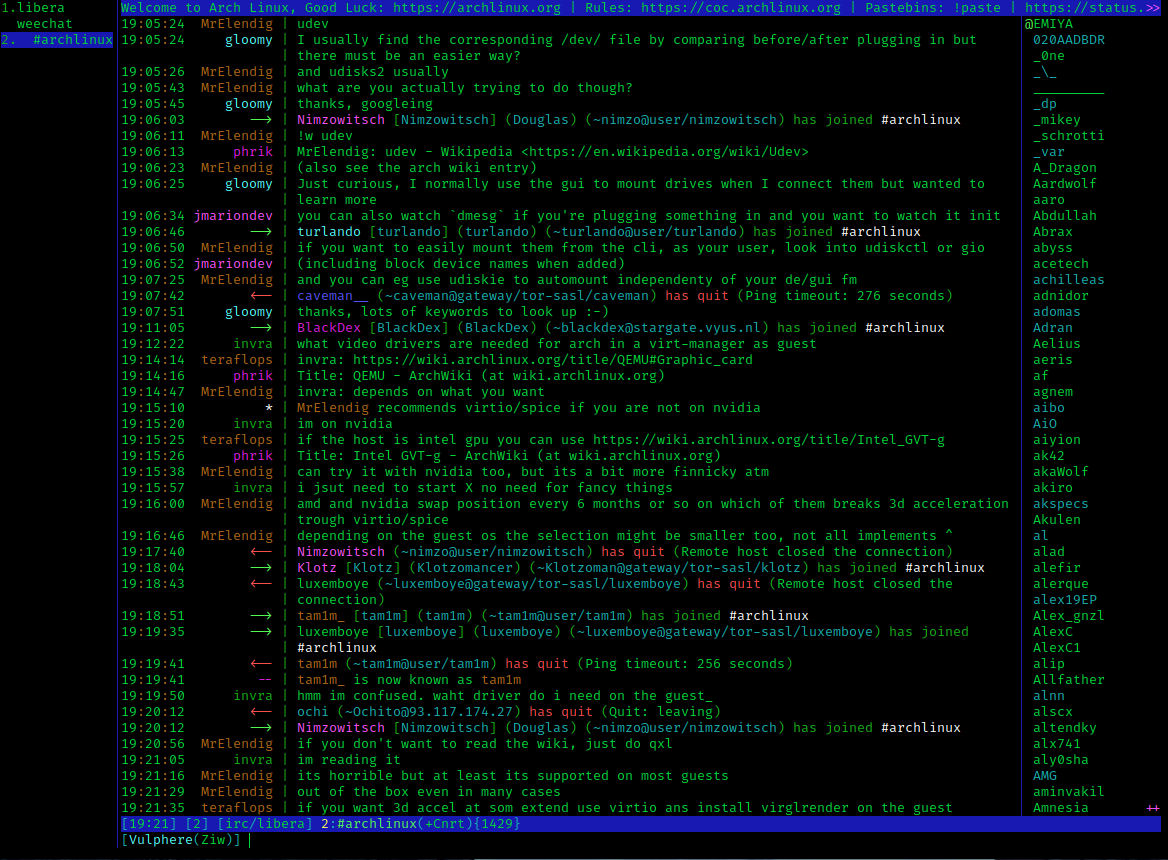
WeeChat (Text based, Linux, BSD, OS X, GNU Hurd, Windows (Cygwin) )
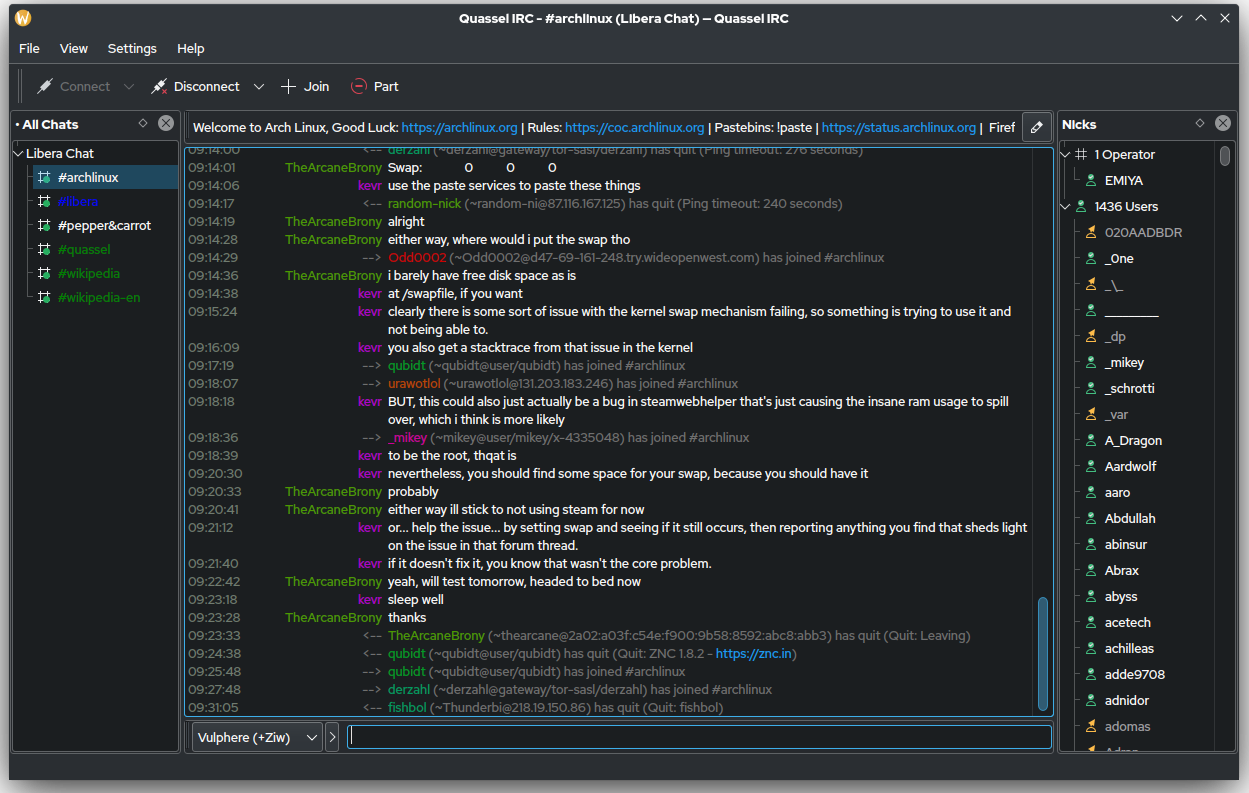
Quassel IRC (GUI, macOS, *nix, Windows)
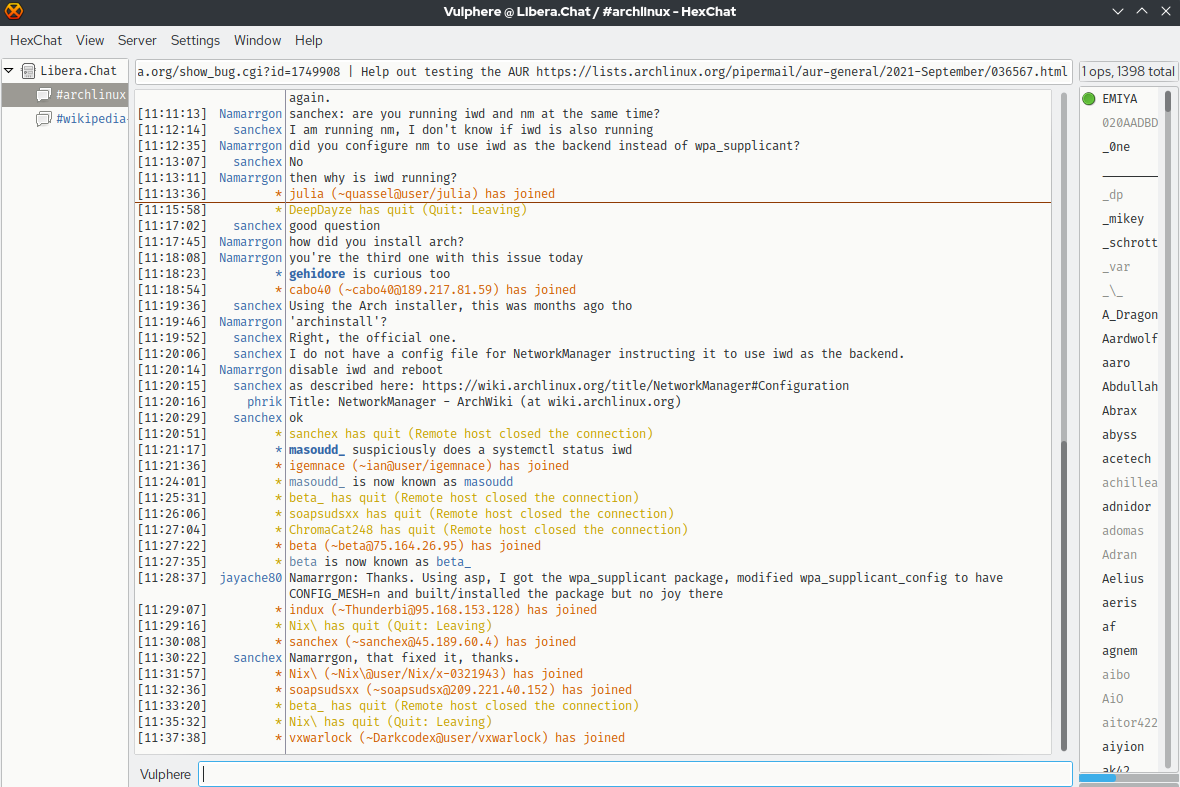
HexChat (GUI, Linux, Windows)
IRC commands
/admin shows information about the server administration/staff
/away sets or removes your away status
/credits displays server or software credits
/cycle parts and immediately rejoins a channel
/dccallow manages who is allowed to send you dcc requests
/invite invites a user to join a channel
/ison checks whether specific nicknames are online
/join joins a channel
/kick removes a user from a channel
/knock requests an invite to a locked channel
/license displays the server or software license
/links lists all servers linked to the network
/list shows a list of available channels
/lusers displays statistics about users and servers on the network
/map shows a map of the server network
/mode changes or displays user or channel modes
/module shows or manages server modules
/motd displays the message of the day
/names lists users in a channel
/nick changes your nickname
/notice sends a notice message to a user or channel
/part leaves a channel
/ping checks connection latency with a server or user
/pong replies to a ping request
/privmsg sends a private message to a user or channel
/quit disconnects you from the server
/rules displays the server rules
/setname changes your realname/gecos field
/silence blocks messages from specified users
/stats shows server statistics
/time displays the server’s local time
/topic views or changes a channel’s topic
/userhost returns information about a user’s hostmask
/userip returns the ip address of a user
/version shows the server software version
/vhost requests or activates a virtual host
/watch monitors when specific users connect or disconnect
/who lists users matching a pattern
/whois shows detailed information about a user
/whowas shows information about a nickname that recently quit